
Mobile Tickets
Downloading Your Mobile Tickets to your Smartphone
You will receive an email from [email protected] containing a link to your mobile tickets. If you do not see this message in your inbox, be sure to check your spam/junk folder. Please check the event page for each show to determine if there is a delivery delay.
We recommend you download your tickets to your smartphone’s wallet immediately. If there are changes to your event (new date, different event time, etc.), your mobile tickets will automatically update with the new information.
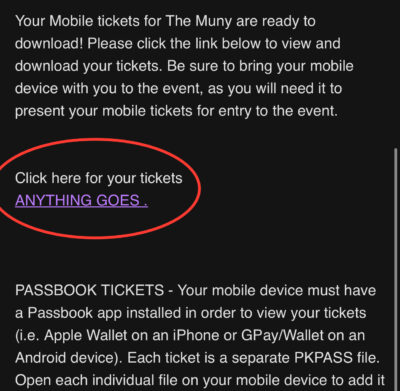
To download your tickets, first click the link in the email.
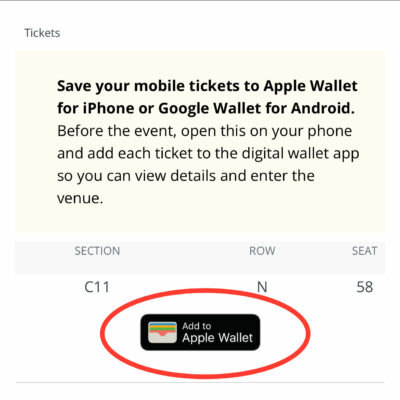
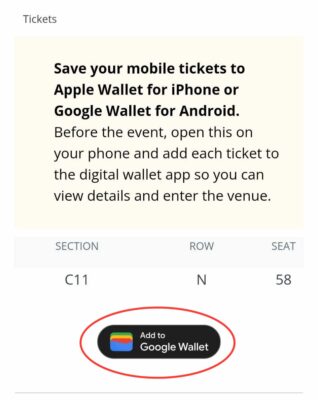
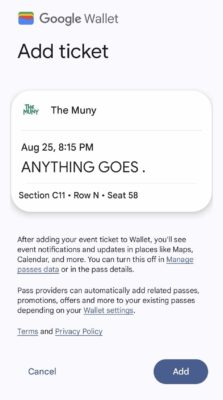
Tap “Add to Apple Wallet” (iPhone) or “GPay/WALLET Save to phone” (Android). Tap ADD when presented with your ticket. Repeat this for each ticket in your order.
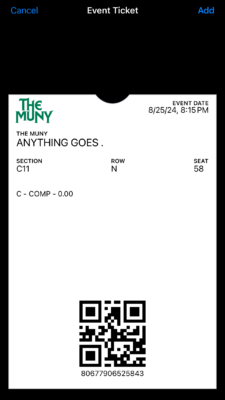
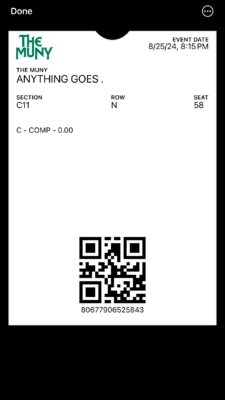
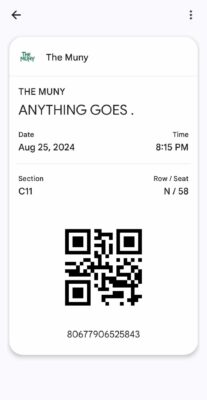
When you arrive at the theatre, before approaching the doors, open your Wallet app and select your tickets. Each ticket has a unique QR code that will be scanned on entry. If you have more than one ticket, your smartphone’s wallet will group them by event date. Simply swipe through them one at a time for scanning. Be sure your phone is set to full brightness for easiest scanning.

Troubleshooting:
Occasionally, you may download a ticket and not see it appear in your mobile wallet. If this happens, scroll to the very bottom of your wallet and click the “EXPIRED PASSES” button. Your valid ticket may be appearing in this location in error. Click on the ticket with the valid QR code and then click “UNHIDE” to move it to your main wallet.
If you click your ticket link but a previously ordered ticket appears instead, please try clearing your browser cookies. If you still experience this error, open your ticket link with a different browser. For example, if you are opening the link in Chrome, open it instead in Safari.
If you need assistance, please contact MetroTix at (314)534-1111 or [email protected].